DEEPX M1 Accelerator
The DEEPX M1 is an AI accelerator for edge inference workloads. On supported Grinn platforms, it connects over PCIe and offloads neural network inference from the main SoC.
For additional information about the DEEPX M1 accelerator, refer to the DEEPX website.
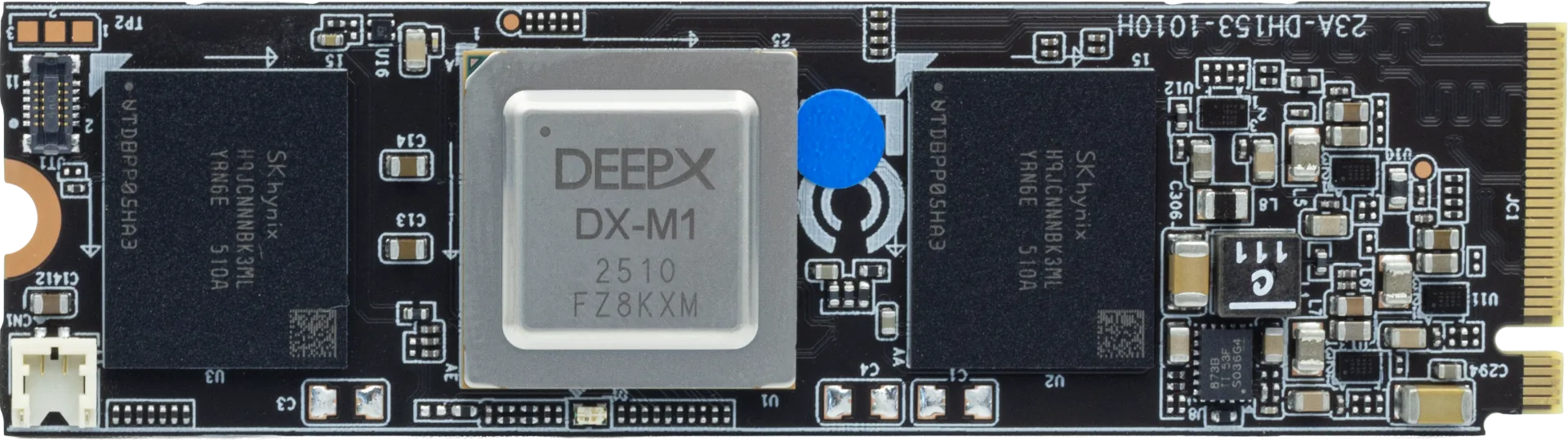
Prebuilt Image
You do not need to build a custom image to use the DEEPX M1 accelerator. Refer to the Prebuilt Images section and download an image that includes DEEPX support.
Build the Image
If you need a custom image with DEEPX support, follow the instructions below.
Enter the folder containing the image configuration files:
cd genio/meta-grinn-genio/kas
Run the following command to build the image with the DEEPX extension:
KAS_MACHINE=grinn-genio-700-sbc KAS_CONTAINER_IMAGE_DISTRO=debian-bookworm KAS_WORK_DIR=../.. \
kas-container \
build default.yml:deepx.yml
To include additional image extensions, refer to the Build the Image section.
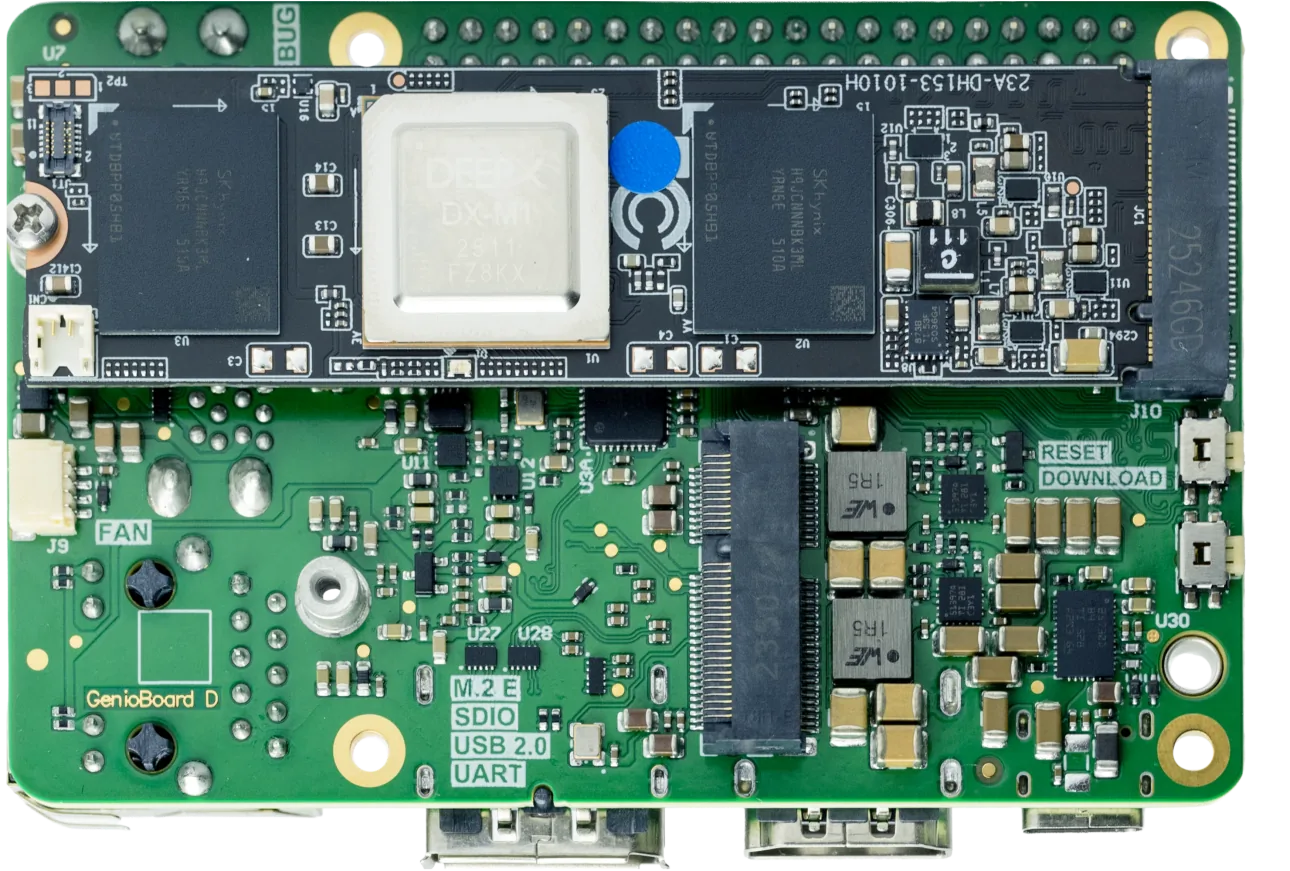
Connect DEEPX M1 to the Board
Make sure the board is powered off before installing the accelerator.
Locate the PCIe slot on the board that matches the DEEPX M1 key. Insert the accelerator and secure it according to the board's mechanical mounting method.
The DEEPX M1 accelerator should be connected as follows:
Flash the Image
If you downloaded a prebuilt image, flash that image package. If you built the image locally, flash the artifacts produced by your build. For detailed instructions, refer to the Flash the Image section.
Verify DEEPX Support
To make sure that the DEEPX M1 accelerator is visible to the system, run the following command on the board:
lspci
The output should include a line similar to the following, indicating that the DEEPX M1 accelerator is detected:
01:00.0 Processing accelerators: DEEPX Co., Ltd. DX_M1 (rev 01)
If the DEEPX M1 accelerator is not visible in the output, restart the board by disconnecting and reconnecting the power supply.
To verify that the image includes DEEPX support, run the following:
dxrt-cli -s
The output should be similar to the following:
DXRT v3.2.0
=======================================================
 * Device 0: M1, Accelerator type
---------------------   Version   ---------------------
 * RT Driver version   : v2.1.0
 * PCIe Driver version : v2.0.1
-------------------------------------------------------
 * FW version          : v2.5.6
--------------------- Device Info ---------------------
 * Memory : LPDDR5 5600 Mbps, 3.92GiB
 * Board  : M.2, Rev 1.0
 * Chip Offset : 0
 * PCIe   : Gen2 X1 [01:00:00]

NPU 0: voltage 750 mV, clock 1000 MHz, temperature 37'C
NPU 1: voltage 750 mV, clock 1000 MHz, temperature 37'C
NPU 2: voltage 750 mV, clock 1000 MHz, temperature 37'C
=======================================================
Download a Model
Go to the DEEPX Model Zoo and download
a model in the DXNN format.
For the purpose of this guide, we assume the YOLOv8L model is downloaded, but you can use any model available in the DEEPX Model Zoo.
Transfer the Model to the Board
There are multiple ways to transfer files to the board. This guide uses ADB, but any other method can be used as well.
Set up ADB as described in the Android Debug Bridge (ADB) section.
Go to the folder containing the model and run the following command to copy the it to the board's root directory:
adb push YOLOV8L-1.dxnn /
Run the Model
Run the following command:
adb shell run_model -m /YOLOV8L-1.dxnn
The output should be similar to the following, indicating that the model is running successfully:
Runtime Framework Version: v3.2.0
Device Driver Version: v2.1.0
PCIe Driver Version: v2.0.1

modelFile: /YOLOV8L-1.dxnn
inputFile:
outputFile: output.bin
benchmark: 0
loops: 30
Device specification: 'all' (default)
Run model target mode : Benchmark Mode
Inference by loops: count=30

=== Model File: /YOLOV8L-1.dxnn ===

Model Input Tensors:
  - images
Model Output Tensors:
  - onnx::Concat_547
  - onnx::Concat_540
  - onnx::Concat_555
  - onnx::Concat_562
  - onnx::Concat_577
  - onnx::Concat_570

Tasks:
  [ ] -> npu_0 -> []
  Task[0] npu_0, NPU, NPU memory usage 170082560 bytes (input 1228800 bytes, output 4838400 bytes)
  Inputs
     -  images, UINT8, [1, 640, 640, 3 ]
  Outputs
    -  onnx::Concat_547, FLOAT, [1, 80, 80, 80 ]
    -  onnx::Concat_540, FLOAT, [1, 64, 80, 80 ]
    -  onnx::Concat_555, FLOAT, [1, 64, 40, 40 ]
    -  onnx::Concat_562, FLOAT, [1, 80, 40, 40 ]
    -  onnx::Concat_577, FLOAT, [1, 80, 20, 20 ]
    -  onnx::Concat_570, FLOAT, [1, 64, 20, 20 ]


=============================================
* Benchmark Result (30 inputs)
  - FPS : 53.20
=============================================
Next Steps
For additional guides and resources, refer to the DEEPX Developer Resources.
Troubleshooting
Running the model may fail with the following error:
[dxrt-exception] Invalid operation exception {"The current firmware version is 2.1.0.
Please update your firmware to version 2.4.0 or higher.":/usr/src/debug/dx-rt/3.2.0/lib/device_version.cpp:216:CheckVersion} error-code=261
In this case, a DEEPX firmware update is required.
Clone the DEEPX-AI repository and navigate to the directory containing it. Then execute the following command to copy the firmware image to the target board:
adb push m1/latest/mdot2/fw.bin /tmp/
On the target board, run the following command to perform the firmware update:
dxrt-cli -u /tmp/fw.bin