DisplayPort Display
This guide explains how to connect a display to the board, configure it where needed, verify that it is detected, and render content on it.
The Grinn GenioBoard-700 drives an external monitor through its DisplayPort connector. No Device Tree Overlay or image extension is needed, because the interface is enabled in the default image.
Connect the Display
The board exposes a DisplayPort connector, so a cable or adapter that matches that connector on one end and the monitor on the other end is required.
- Plug the cable into the DisplayPort connector.
- Connect the other end to the monitor and select the matching input source on it.
- Power on the board.
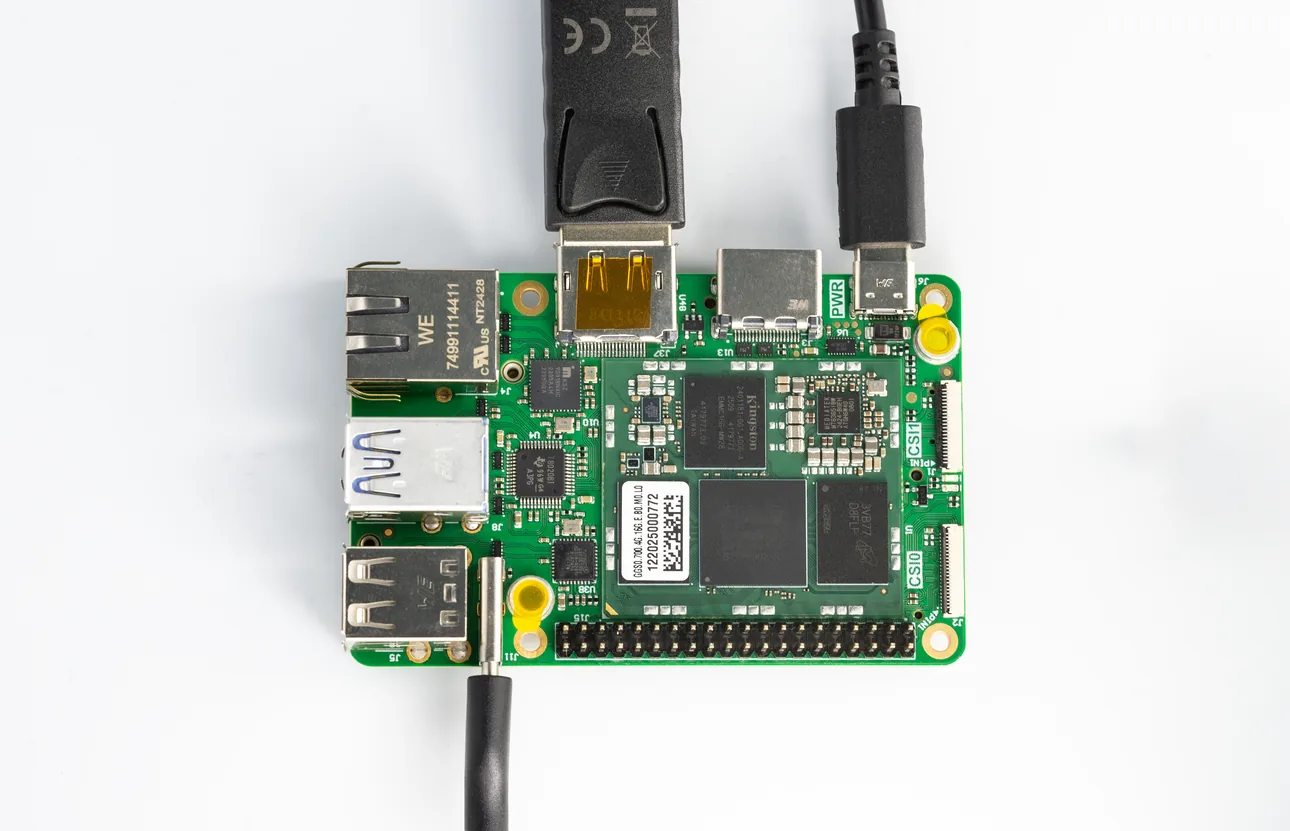
The interface is hot-pluggable, so the monitor can also be attached while the board is running. Connecting it before power-on is still recommended, because the compositor then picks up the monitor's preferred resolution on the first start.
Verify the Display
On the host, enter the target shell:
adb shell
In the target shell, list the DRM connectors and their status:
for status in /sys/class/drm/card*-*/status; do
  connector=${status%/status}
  printf '%s: %s\n' "${connector##*/}" "$(cat "$status")"
done
The connector the display is attached to has to be reported as connected, for
example:
card0-DP-1: connected
If the connector is missing or reported as disconnected, check the
connection as described above.
Keep this target shell open for the examples below.
Use the Display
The image runs a Wayland / Weston compositor by default, so the desktop appears on the display as soon as it is detected. The following steps run in the target shell.
Point the Wayland clients at the running compositor first:
WAYLAND_SOCKET=$(find /run/user -mindepth 2 -maxdepth 2 -type s -name 'wayland-*' -print -quit)

export XDG_RUNTIME_DIR="${WAYLAND_SOCKET%/*}"
export WAYLAND_DISPLAY="${WAYLAND_SOCKET##*/}"
Then render a test pattern full screen:
gst-launch-1.0 -v videotestsrc \
! video/x-raw,format=NV12 \
! waylandsink fullscreen=true
A color bar pattern covering the whole display confirms that the pipeline works
end to end. Press Ctrl+C in the shell to stop it.
To use both display outputs, continue with the HDMI and DisplayPort display guide.