IMX214
This guide explains how to safely connect a camera, configure it for use, verify that it is detected, and preview or capture images.
Connect the Camera
Make sure to follow these rules:
- Power off the board and disconnect its power supply before connecting or removing a camera.
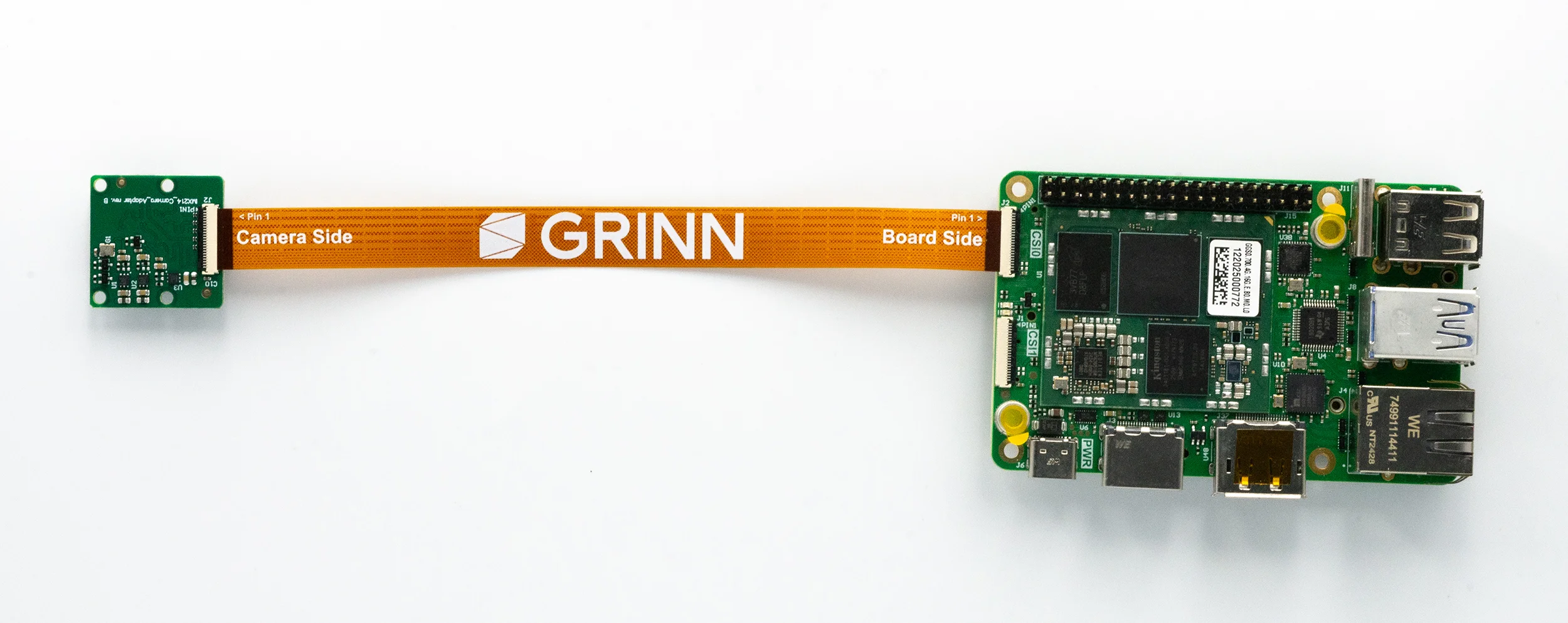
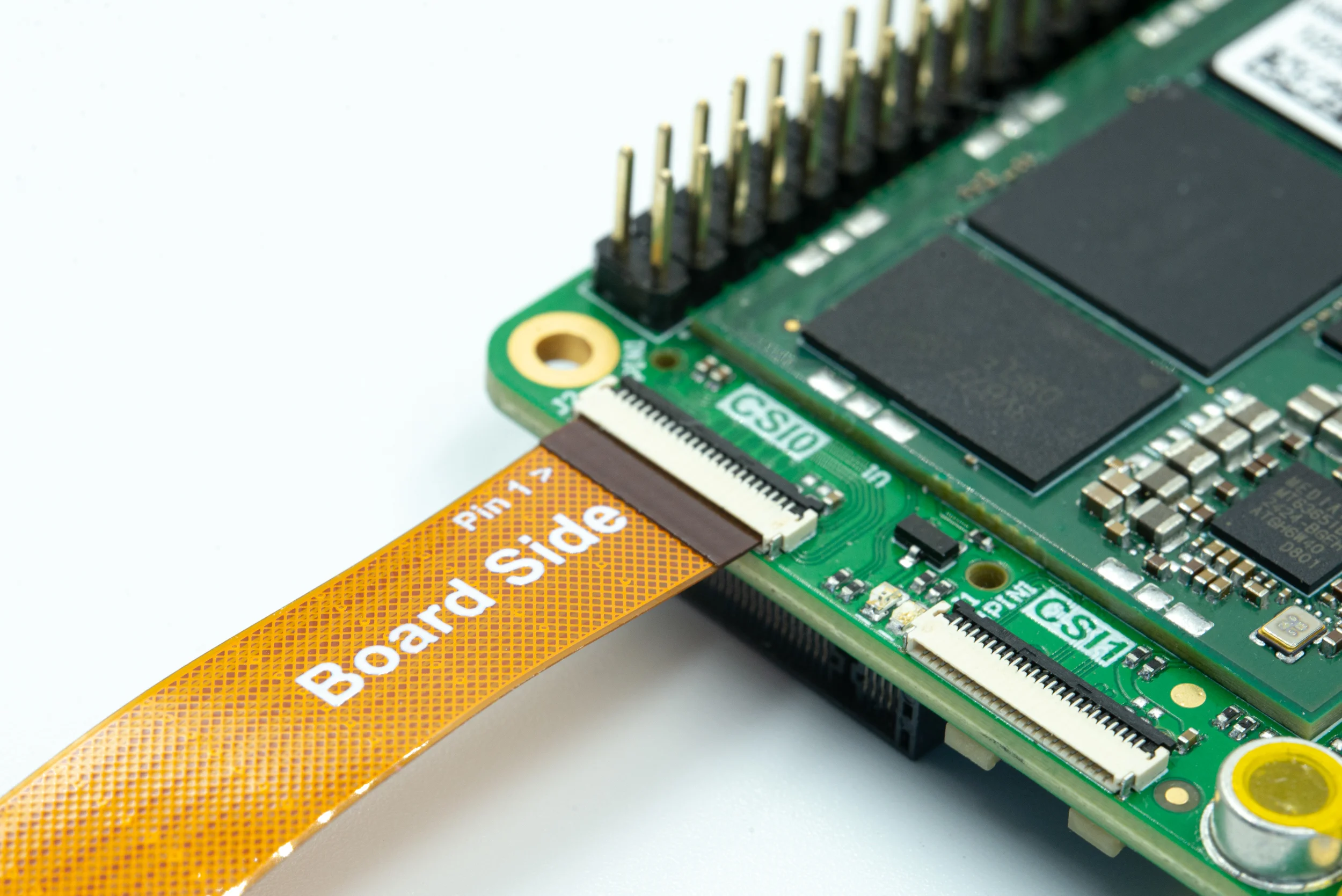
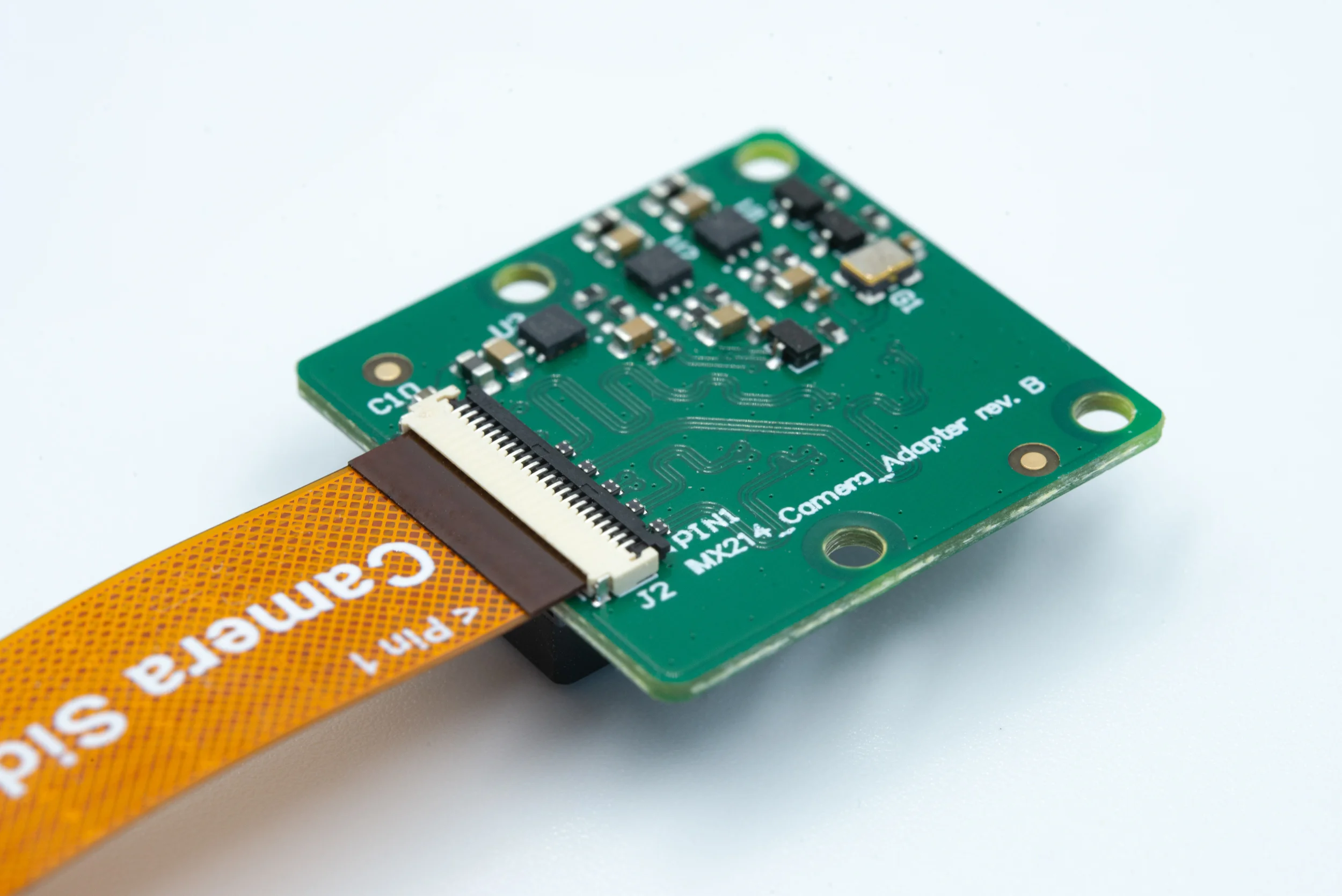
- Connect the camera as shown in the images below.
Otherwise, you may damage either the board or the camera.
- Release the latch on the board's camera connector.
- Connect the FPC to the appropriate connector, as shown in the image.
- Keep the ribbon straight and fully seated, then close the latch evenly.
- Connect the other end to the camera module in the same way.
Load the DTBO
The NDA-enabled image has to be used to access the camera.
Obtain the image from Prebuilt Images or Build the Image with the NDA extension enabled.
On the host, open a terminal in the image directory and load the required Device Tree Overlay while flashing the image:
genio-flash --load-dtbo camera-imx214-csi0.dtbo
Follow the Flash the Image guide for details on flashing the image to the target.
Detect the Camera
On the host, enter the target shell:
adb shell
In the target shell, discover the camera device nodes:
for node_path in /sys/class/video4linux/video*; do
  node_name=$(cat "$node_path/name")
  node="/dev/${node_path##*/}"

  case "$node_name" in
    mtk-v4l2-camera@*-Preview) PREVIEW_DEV="$node" ;;
    mtk-v4l2-camera@*-Capture) CAPTURE_DEV="$node" ;;
  esac

done
Keep this target shell open for the examples below so that the discovered variables remain available.
Use the Camera
The following examples run on the target unless a step is explicitly marked as a host command.
Live Preview
With an external display connected, run the following command in the target shell:
WAYLAND_SOCKET=$(find /run/user -mindepth 2 -maxdepth 2 -type s -name 'wayland-*' -print -quit)

export XDG_RUNTIME_DIR="${WAYLAND_SOCKET%/*}"
export WAYLAND_DISPLAY="${WAYLAND_SOCKET##*/}"

gst-launch-1.0 -v v4l2src device="$PREVIEW_DEV" \
! video/x-raw,width=1280,height=720,format=YUY2 \
! videoconvert \
! waylandsink sync=false
Press Ctrl+C in the shell to stop the preview.
Capture an Image without a Display
In the target shell, capture one JPEG:
gst-launch-1.0 -e \
v4l2src device="$CAPTURE_DEV" num-buffers=1 \
! image/jpeg,width=3840,height=2160 \
! filesink location=/tmp/capture.jpg
Exit the target shell:
exit
In the host terminal, enter the directory where you want to save the image and download it:
adb pull /tmp/capture.jpg ./capture.jpg
Open capture.jpg on the host to view the captured image.